

Mastering High-Quality Performance Overlays Using RTSS
Whether you’re gaming or benchmarking, having real-time performance data can significantly enhance your experience. On-screen display (OSD) overlays can provide crucial insights such as framerate, hardware utilization, and temperatures. The RivaTuner Statistics Server (RTSS) is a popular tool among gamers for rendering customizable performance metrics on top of games. Its compatibility and low overhead make it a staple in the gaming community.
Prerequisites and Installation
To utilize RTSS effectively, certain software must be installed and configured. RTSS draws overlays, while other tools act as frontends to enhance its output.
1. RivaTuner Statistics Server (RTSS)
RivaTuner Statistics Server provides real-time performance monitoring and on-screen display (OSD) capabilities. Originally a companion to RivaTuner overclocking utility, it now stands alone, supporting low-overhead hardware monitoring and OSD rendering. RTSS is widely used for real-time performance data in games and benchmarks. Download RTSS from this link:
https://www.guru3d.com/download/rtss-rivatuner-statistics-server-download/
Once installed, ensure the Show On-Screen Display toggle is on to enable overlays.
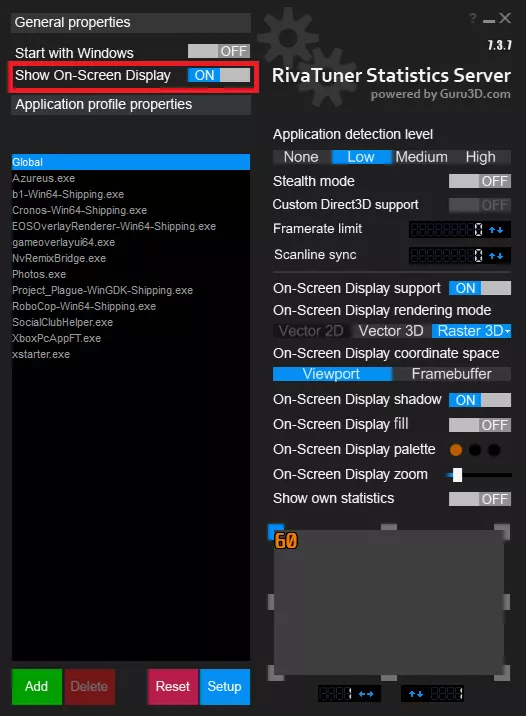
It is advisable to install MSI Afterburner alongside RTSS for additional features and GPU tuning options.
2. MSI Afterburner
MSI Afterburner is a comprehensive tool for PC gamers, integrating with RTSS for real-time overlay stats. It allows you to monitor and tweak hardware metrics, compatible with NVIDIA, AMD, and Intel GPUs. Download it here:
https://www.guru3d.com/download/msi-afterburner-beta-download/
Ensure that RTSS is selected during installation if it’s not already installed.
3. CapFrameX (for extended overlay options)
For benchmark-focused overlays, CapFrameX is an excellent choice. It uses RTSS to display OSD elements and allows customization for benchmark runs. Download CapFrameX here:
https://github.com/CXWorld/CapFrameX/releases
4. HWiNFO64 (for displaying advanced hardware sensor data)
For comprehensive sensor telemetry, HWiNFO64 complements RTSS and Afterburner. Download HWiNFO64 from:
https://www.hwinfo.com/download
Enable Shared Memory Support in HWiNFO64 to allow RTSS and other tools to read sensor data.
![The image shows HWiNFO 64's settings windows with options like 'Main Settings' and 'Shared Memory Support [12-HOUR LIMIT]' highlighted in red, along with various configuration settings for monitoring and resetting preferences.](https://cbswatchmagazine.com/wp-content/uploads/2026/01/mastering-high-quality-performance-overlays-using-rtss-1.webp)
Setting up Overlays via MSI Afterburner
MSI Afterburner combined with RTSS allows you to customize performance overlays. You can either create your own or use pre-made templates.
Setting up your own overlay via MSI Afterburner
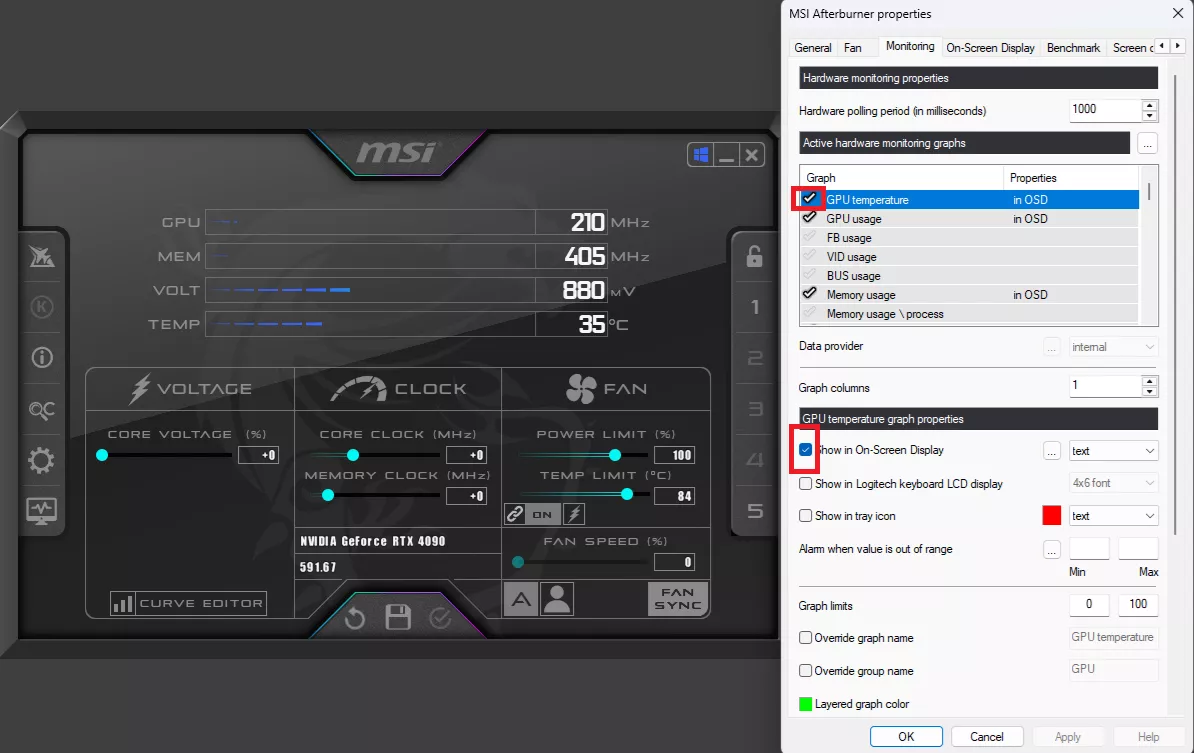
Create a custom overlay in MSI Afterburner by accessing the Monitoring tab. Select performance metrics to display and assign a hotkey for toggling the overlay. Make sure RTSS is running before launching your game for the overlay to appear.


Using pre-made RTSS overlay templates
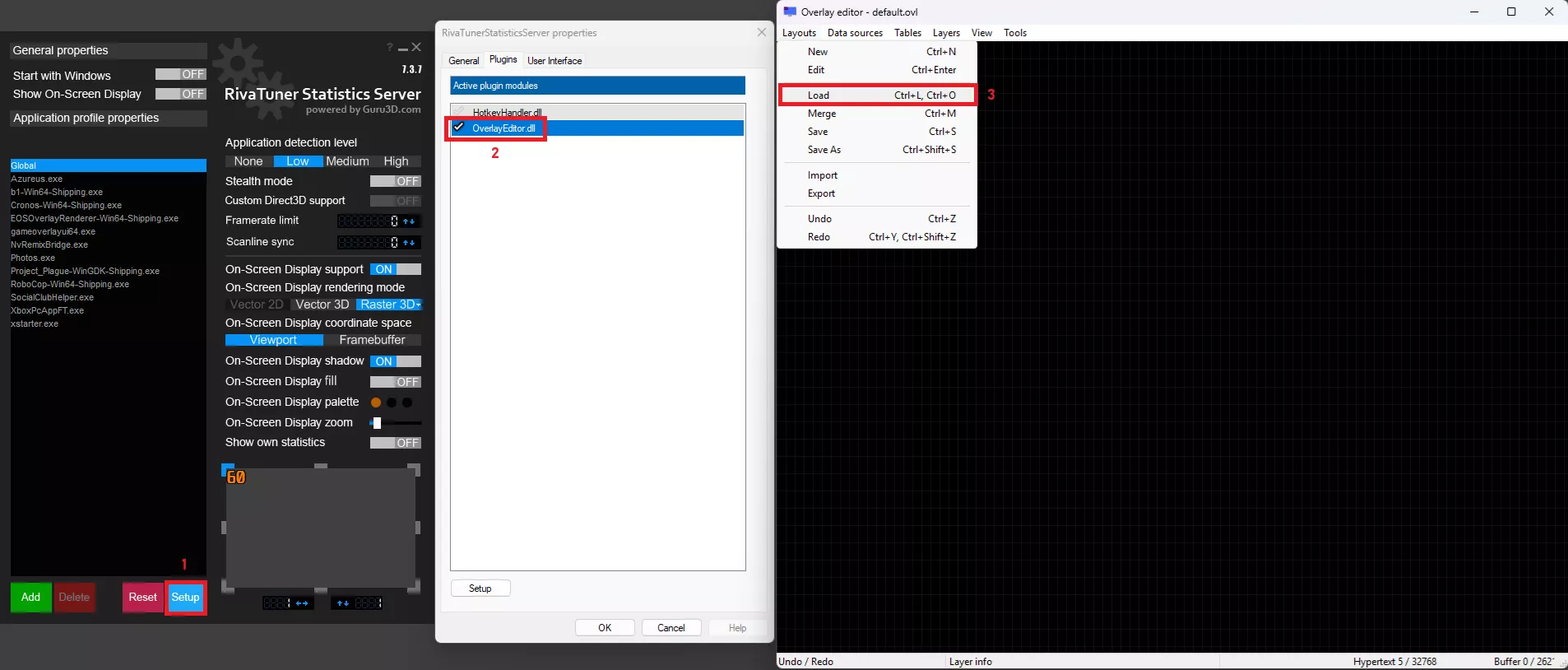
For a polished display, RTSS comes with pre-configured templates. Enable the Overlay Editor in RTSS, load an overlay layout, and select your desired template.
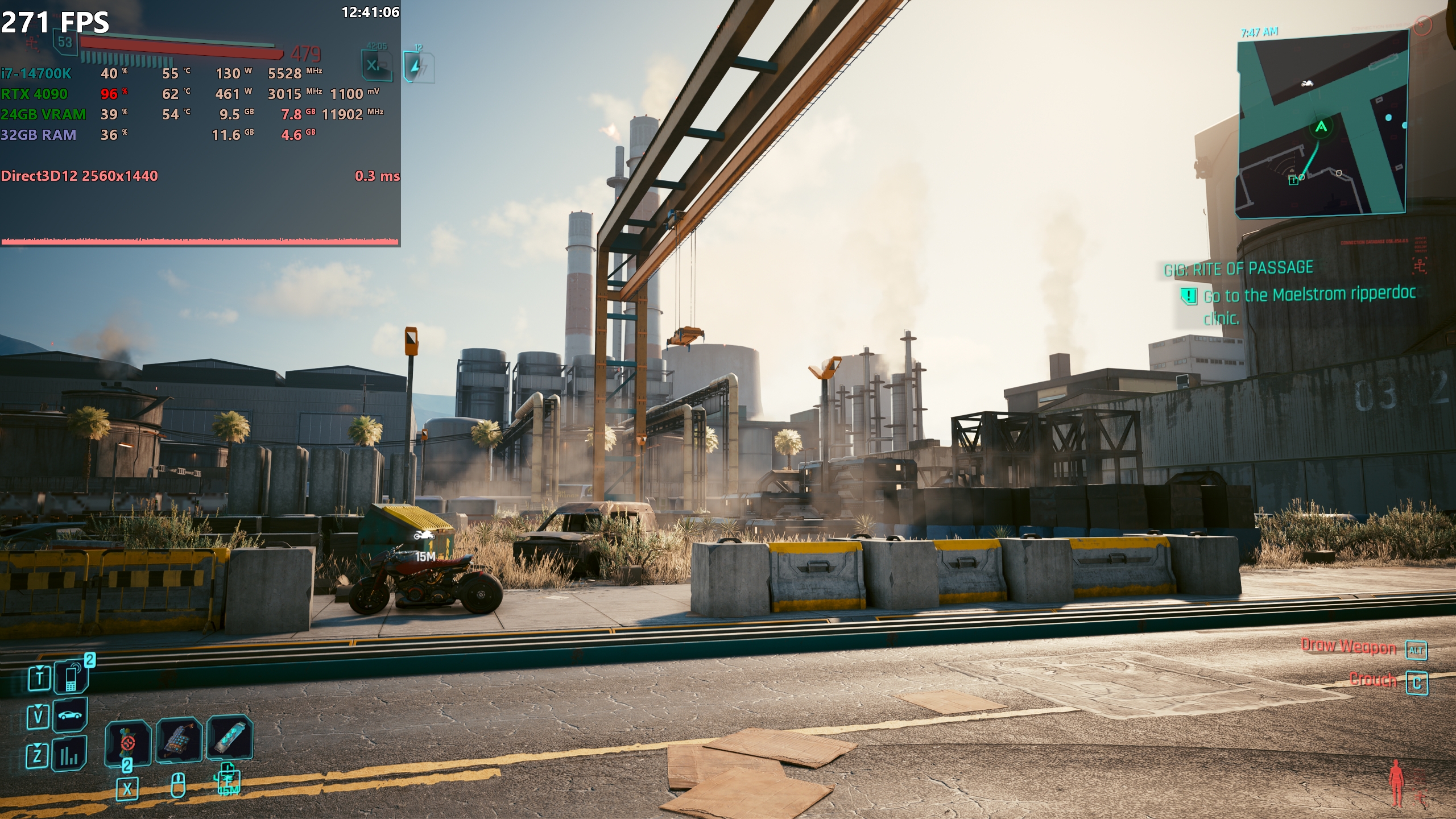
classic.ovl overlay templateDownload a customized overlay template for a better experience using this link:
https://www.mediafire.com/file/j88cqnpcgl0g2fu/Custom+Afterburner-RTSS+Overlay.ovl/file
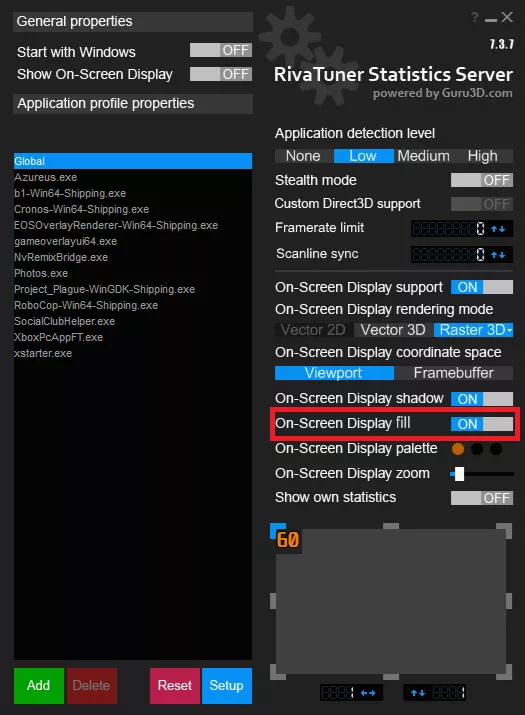
To add a transparent black background to your overlay, enable the On-Screen Display fill option in RTSS settings:
Using TroyMetrics Benchmark Overlays
TroyMetrics Benchmark Overlays offers professional, benchmark-focused overlays with features like latency modules and enhanced graphs. They provide rich, high-information displays for performance analysis. Set up your overlays using the guide on their GitHub page:
https://github.com/TroyMetrics/Benchmark-Overlays
Setting up Custom Overlays in CapFrameX
CapFrameX allows for custom performance overlays using RTSS as the rendering backend. This enables benchmark-centric overlays tailored to your needs.
How the CapFrameX overlay works
CapFrameX’s Overlay tab lets you select display items, grouping, and appearance, using RTSS to render the overlay. It provides extensive customization options.